Year 2 Editing Worksheets (Printable PDFs)
Printable Year 2 editing worksheets from ZiloAcademy, covering checking and fixing spelling, punctuation and sense. Aligned with the Australian Curriculum (Version 9.0).
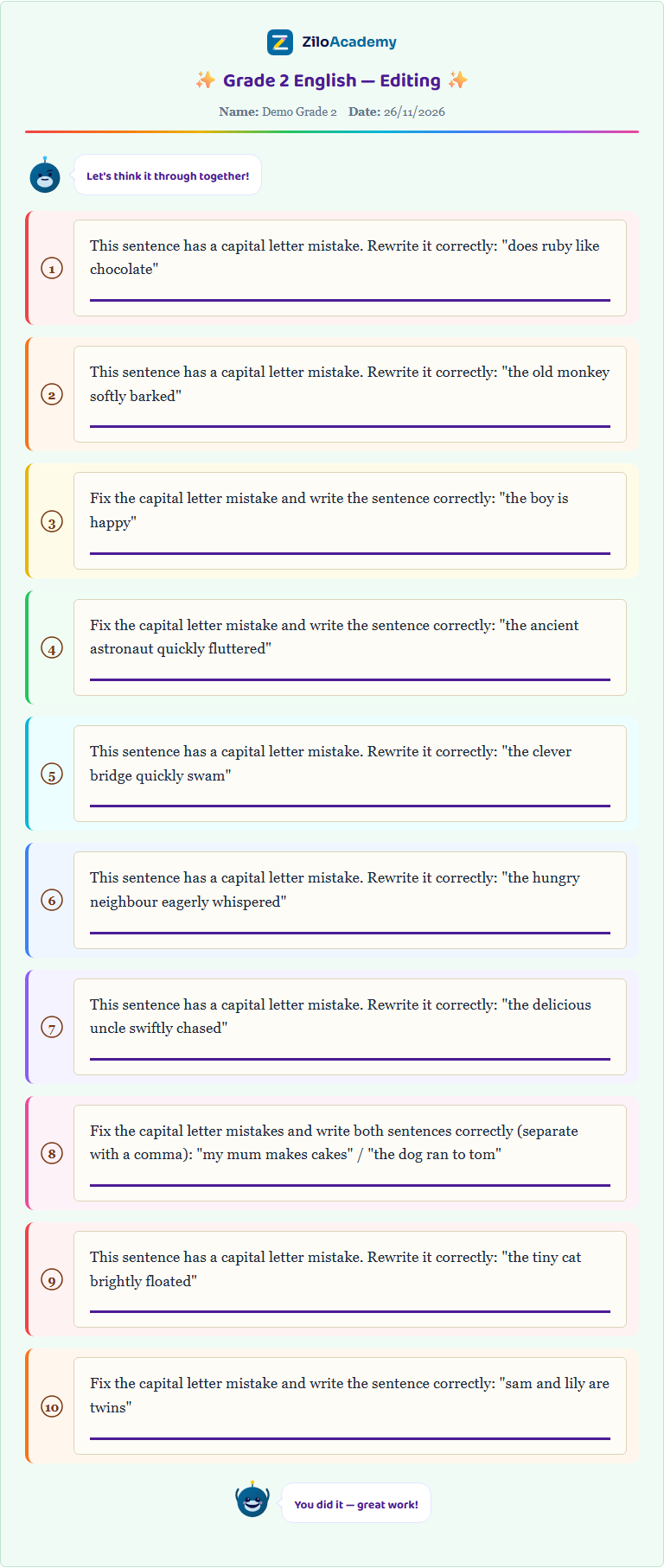
👆 This is what a real Year 2 Editing Worksheets worksheet looks like
A real sample page — click the image to open the full worksheet and print it, with a fresh set of questions and an instant answer key.
👁️ View & Print This Worksheet →What Will Your Child Learn?
Year 2 editing worksheets build reading back over a piece of writing specifically to find and fix mistakes — missing capital letters, missing full stops, obvious spelling errors, and sentences that don't quite make sense. Worksheets use find-the-mistake passages, since spotting someone else's errors is a genuinely good warm-up before editing your own.
Why Editing Matters
Editing is a genuinely distinct skill from writing itself, requiring a child to re-read their own work with fresh, critical eyes rather than the more forgiving eyes used while first drafting it — and that shift in mindset needs its own direct practice.
Practising on someone else's mistakes first, before editing one's own writing, works well because it's genuinely easier to spot an error in unfamiliar text than in writing you already know what you meant to say.
How to Print the Worksheets
- Select the worksheet you want and open its printable view.
- Press Ctrl+P (Windows) or Cmd+P (Mac), or use your browser's Print option.
- In the print preview, choose A4 paper size.
- Set the layout to Portrait (most worksheets) or Landscape if the sheet is wide.
- Check the print preview to make sure nothing is cut off — adjust "Scale" or "Fit to page" if it is.
- Turn on "Black and white" or "Grayscale" in printer settings to save colour ink.
- Click Print — or choose "Save as PDF" as the destination to keep a digital copy instead.
Works the same way whether you're printing from Chrome, Edge or Safari, on a desktop, laptop or tablet. Full details, including printing from a phone and fixing content that's cut off, are in our complete guide to printing worksheets at home.
Tips for Parents
- Practise finding mistakes in someone else's writing first, as an easier warm-up before self-editing
- Read a piece of writing aloud when editing, since awkward or missing words are often easier to hear than see
- Check one thing at a time — capital letters, then full stops, then spelling — rather than everything at once
- Keep editing genuinely separate from writing, as its own distinct step after a first draft is finished
Frequently Asked Questions
📚 Helpful Guides for Parents
Get more out of every worksheet with practical tips from the Zilo Academy blog — study routines, NAPLAN advice and ways to support your child’s learning at home.