Year 7 Editing Worksheets (Printable PDFs)
Printable Year 7 editing worksheets from ZiloAcademy, covering a structured, multi-pass approach to checking writing. Aligned with the Australian Curriculum (Version 9.0).
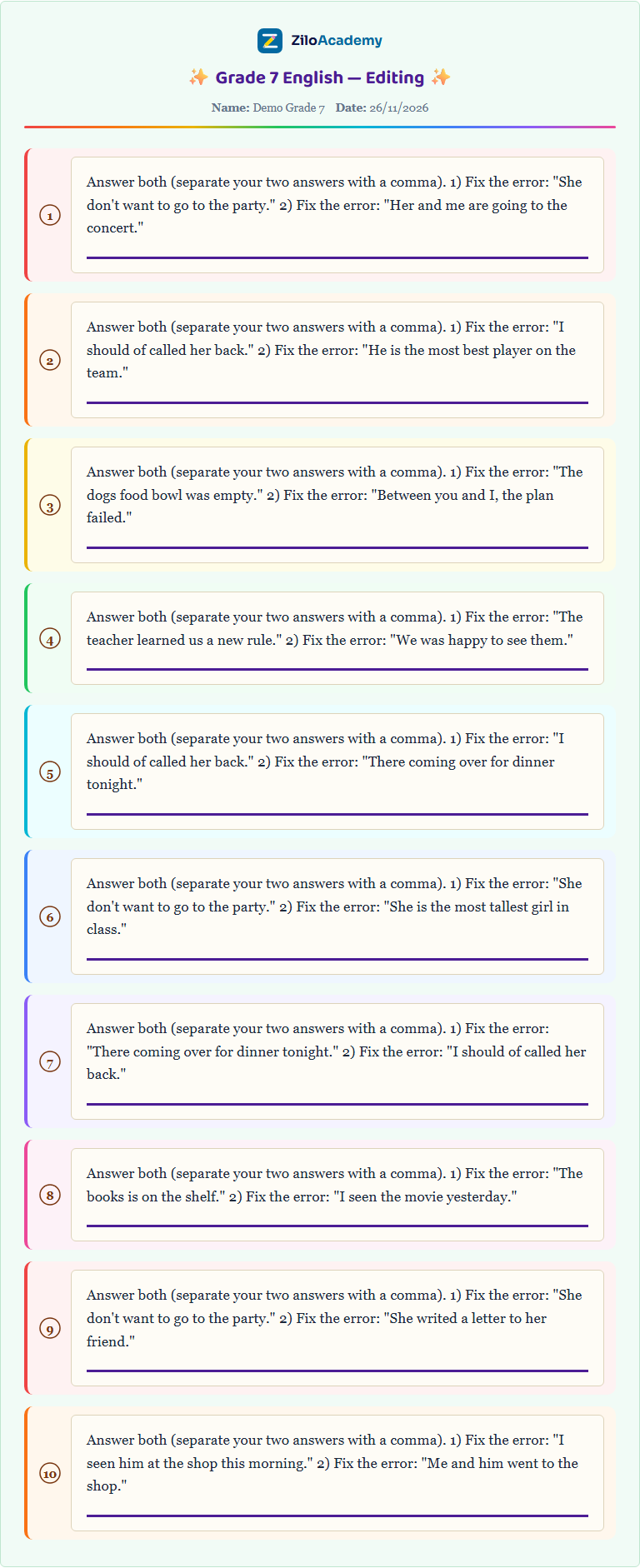
👆 This is what a real Year 7 Editing Worksheets worksheet looks like
A real sample page — click the image to open the full worksheet and print it, with a fresh set of questions and an instant answer key.
👁️ View & Print This Worksheet →What Will Your Child Learn?
Year 7 editing worksheets build using a structured, multiple-pass approach to checking a piece of writing — one pass for grammar and punctuation, one for spelling, one for sentence variety and word choice — rather than trying to catch everything in a single read-through. Worksheets include editing a deliberately error-filled passage using this structured approach.
Why Editing Matters
Trying to catch every type of error in one single read-through genuinely overloads attention, and a structured, multiple-pass approach — checking one specific thing at a time — catches more errors far more reliably.
This structured habit also transfers directly to any longer piece of writing a student produces throughout secondary school and beyond, making it a genuinely durable, reusable process rather than a one-off worksheet skill.
How to Print the Worksheets
- Select the worksheet you want and open its printable view.
- Press Ctrl+P (Windows) or Cmd+P (Mac), or use your browser's Print option.
- In the print preview, choose A4 paper size.
- Set the layout to Portrait (most worksheets) or Landscape if the sheet is wide.
- Check the print preview to make sure nothing is cut off — adjust "Scale" or "Fit to page" if it is.
- Turn on "Black and white" or "Grayscale" in printer settings to save colour ink.
- Click Print — or choose "Save as PDF" as the destination to keep a digital copy instead.
Works the same way whether you're printing from Chrome, Edge or Safari, on a desktop, laptop or tablet. Full details, including printing from a phone and fixing content that's cut off, are in our complete guide to printing worksheets at home.
Tips for Parents
- Practise editing in separate, focused passes — one for grammar, one for spelling, one for sentence variety
- Resist the urge to catch everything in a single read-through, since that genuinely overloads attention
- Read work aloud during at least one editing pass, since awkward phrasing is often easier to hear than see
- Apply this structured approach to your child's own longer writing projects, not just worksheet practice
Frequently Asked Questions
📚 Helpful Guides for Parents
Get more out of every worksheet with practical tips from the Zilo Academy blog — study routines, NAPLAN advice and ways to support your child’s learning at home.